Virtualization & its Architecture
“The process of transforming hardware into software using Hypervisor is known as virtualization.”
Virtualization is the process of simulating software and/or hardware in order to execute other applications. The term “virtual machine” refers to this simulated environment. As if it were a real computer, each VM may run its own operating system and applications. So, it enables us to run many applications on the same computer as well as several operating systems.
Virtualization may be compared to the process of growing a plant. When you consider how a plant grows, you’ll see that it frequently begins as a seed or a single stalk from which a portion has been cut off and placed in water. Within a few weeks, a single stem or even a single seed, if properly planted and hydrated, will produce many leaves. This is related to the generation of several virtual or artificial resources from a single physical resource. From that one seed, you receive a lot of leaves.
_________________________________________________________________
Why do we need Virtualization?
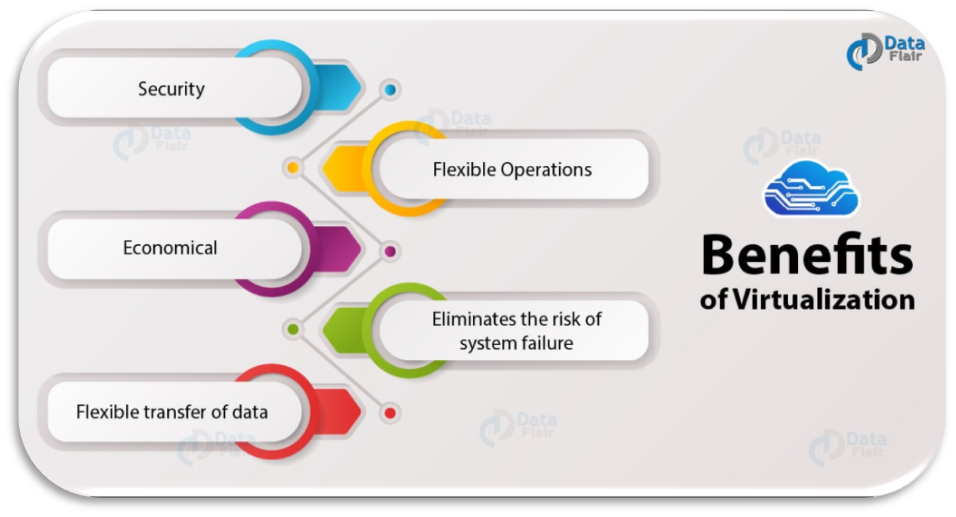
Figure 2: Need for Virtualization
Many people associate virtualization with the cloud, the cloud is actually a subset of virtualization. The capacity to run numerous working systems and applications on a PC or server is the maximum vital function of virtualization. This translates to higher productivity from fewer servers. Due to technologies that can balance resources and supply only what the user need, virtualization may typically increase overall program performance.
Virtualization allows you to instantaneously access practically infinite computer resources, allowing you to run your organization more quickly and efficiently. It also eliminates chaotic IT rooms, wires, and cumbersome gear, lowering total IT expenditures and administration expenses.
Virtual machine technology, sometimes known as virtualization, is gaining popularity in the IT world. Virtual machines are not a new idea, but recent advancements in hardware and software technologies have propelled virtualization to the forefront of IT administration. Virtualization’s rapid increase may be attributed to several factors, including stability, cost savings, and manageability.
_________________________________________________________________
Describe which things can be virtualized?
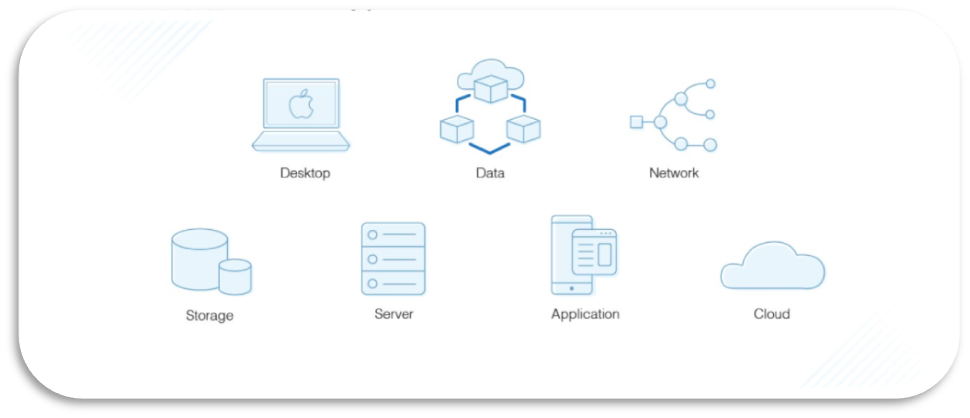
Figure 3: Things that can be virtualized
_________________________________________________________________
Things we can do with virtualization are as follows:
1. Run Old Applications: Have a program that won’t run on Windows 7 or Vista, but does in XP or an older version of Windows, such as (Globalink Powerlink Translation Software)? Simply take an old Windows CD and put it into a virtual computer (VM). Then move beforehand and set up your app.
Unity mode is a feature of VMware Player that allows virtual machine apps to seem as if they were running natively on the host computer. They have their own taskbar buttons and application windows, resulting in a completely seamless experience. However, you’ll need to install the VMware Tools application on the virtualized operating system for this to operate. You’ll normally be requested to do this when the OS installation is complete.
2. Browse in total safety: Install Windows on VMware Player, then use Unity mode to make Firefox seem to be operating natively on the host machine. Firefox will be running in a sandbox, which means that if it (or one of its plugins) gets hacked while you’re online, there will be no risk to your operating system. Once everything is configured in the virtual environment, you may take a snapshot to rapidly get everything back up and running if something goes wrong.
3. Run Linux on Windows: Want to test Linux but don’t want to mess with partitioning your computer’s hard drive? Virtual machines may run almost any operating system, including most Linux versions, as long as it can be installed on your computer regularly. Virtualization has been used by Linux and Mac users for years to run Windows on top of their preferred operating system.
Figure 4: VMware Software
Having a desktop version of Linux for occasional usage can make it easier to interface with the server if you operate a Linux system for mail or Web services, for example. To interact through secure shell (SSH), for example, there’s no need to install PuTTY on Windows because Linux has that capability built-in.
4. Back up Operating Systems: Backing up the virtual OS is as straightforward as backing up any other file because it is totally contained within a sequence of files. The same is true for virtualized server configurations. If you’re using a virtual machine on a server to host your mail server and it gets hacked, all you have to do is restore the backup files to get everything back up and running (assuming the vulnerability that allowed the hack is quickly addressed once things are up and running, of course).
Keep in mind that making a replica of a VM might lead to legal complications. Backing up should be acceptable, however, if you make a clone of a VM installation to give to a buddy, you’ll be breaking the law.
5. Reuse Old Hardware: You may transform outdated, less powerful PCs into thin clients by installing Citrix XenDesktop on your Windows server, eliminating the requirement for a workstation IT upgrade expenditure.
Clients log in to their personal desktop areas on the server, with no difference between running the operating system and programs locally. By transferring part of the processing effort to the client machine, XenDesktop avoids classic thin-client issues, including the fact that films and animations don’t play smoothly. If the server is set to be publically available and the appropriate client software is installed, your employees may access their desktops from home using XenDesktop. Mobile phones may also be used to connect to desktop environments.
_________________________________________________________________
Companies that provide the Virtualization:
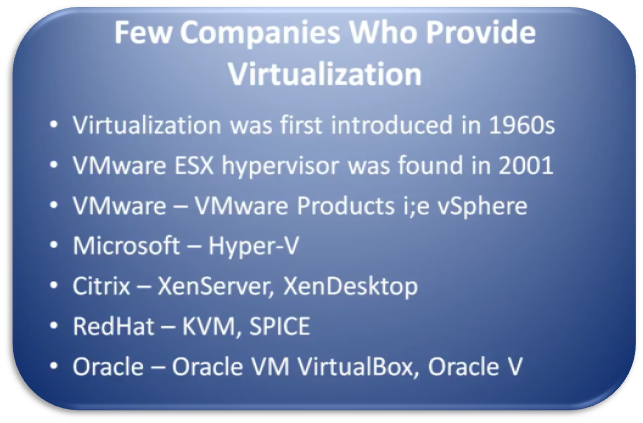
Figure 5: Companies providing Virtualization
_________________________________________________________________
The architecture of Virtualization
Hardware, software, and operating system/containers may all be used to classify virtual machine systems or Virtualization. The virtual machine has evolved from its beginnings on the mainframe to distributed servers on x86, and it will continue to play an increasingly important role in systems administration.
_________________________________________________________________
Types of Virtualization Architectures:
You must first choose the sort of virtualization architecture to utilize in your data center before installing virtualized systems. Virtualization architecture is divided into two categories: hosted and bare-metal.
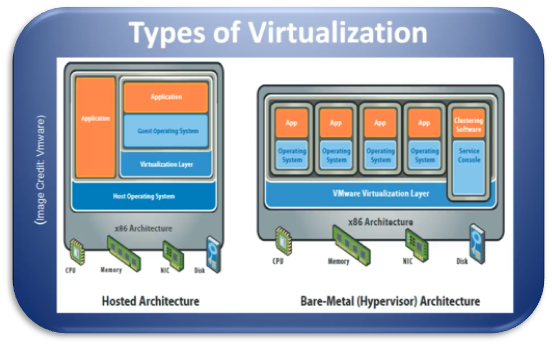
Figure 6: Types of Virtualizations
1. Bare-Metal Architecture: Before installing any additional OSes, drivers, or programs, bare-metal virtualization installs a Type 1 Hypervisor — a software layer that handles virtualization operations — right onto the hardware. VMware ESXi and Microsoft Hyper-V are two popular Hypervisors. Admins frequently refer to bare-metal hypervisors as virtualization’s operating systems, even though Hypervisors aren’t operating systems in the classic sense.
Administrators can use a bare-metal hypervisor to find and virtualize the system’s available CPU, memory, and other resources after installing it. The Hypervisor builds a virtual picture of the system’s resources that it may subsequently use to provision separate virtual machines (VMs). Virtual machines (VMs) are small collections of resources that execute operating systems and applications. The Hypervisor is in charge of connecting and translating real and virtual resources, ensuring that virtual machines and the applications they execute only use virtualized resources.
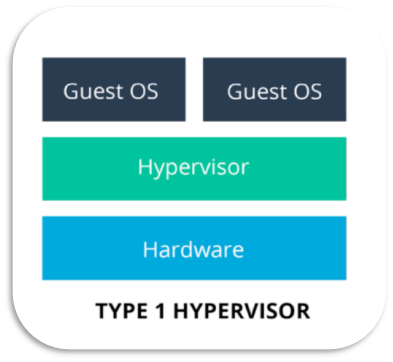
Figure 7: Type 1 Hypervisor
Virtual resources are finite for virtualized resources and physical resources are inextricably linked. This implies that the number of VMs a bare-metal hypervisor may construct is limited by the resources available. If a server has 24 CPU cores and the Hypervisor converts those physical CPU cores to 24 vCPUs, you can create any number of VMs that use up to that total number of vCPUs, such as 24 VMs with one vCPU each, 12 VMs with two vCPUs each, and so on. Though a system might possibly share extra resources to generate more virtual machines (a process called oversubscription), this can have unfavorable implications. Because a VM operates in the memory of a system, administrators may save a fully configured and working VM to a disc, which they can then back up and reload onto the same or other servers in the future, or duplicate to activate several instances of the same VM on other servers in the system.
_________________________________________________________________
The benefits and drawbacks of bare-metal virtualization:
Virtualization is a well-established and dependable technology, and virtual machines (VMs) provide tremendous isolation and mobility. Every VM under bare-metal virtualization is conceptually separated from every other VM, even though they share the same hardware. A single VM cannot access the memory content or traffic of other VMs, nor can it directly communicate data with or interrupt the functioning of other VMs. Furthermore, a problem or failure in one virtual machine does not affect the functioning of other virtual machines. In reality, the only practical means for one VM to communicate with another is through network traffic, as if each VM were its own server.
Live VM migration is also supported by bare-metal virtualization, which allows VMs to migrate from one virtualized system to another without interrupting their activities. Admins can effortlessly balance server workloads or unload VMs from a server that requires maintenance, upgrades, or replacements via live migration. When compared to manually reinstalling software and transferring data sets, live migration improves efficiency.
The Hypervisor, on the other hand, can be a single point of failure (SPOF) for a virtualized system. Modern Hypervisors, such as VMware ESXi 7, are notably free of such weaknesses and attack vectors since virtualization technology is so mature and robust. If a VM fails, the problem is most likely with the VM’s operating system or application, not with the Hypervisor.
_________________________________________________________________
2. Hosted Virtualization: Many of the same traits and behaviors apply to hosted virtualization as they do to bare-metal virtualization. The discrepancy is due to how the Hypervisor is installed by the OS. In a hosted environment, the system first installs the host operating system before layering an appropriate Hypervisor on tops it, such as VMware Workstation, KVM, or Oracle VirtualBox.
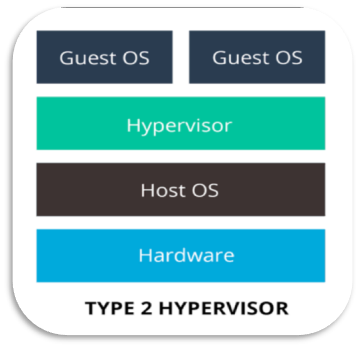
Figure 8: Type 2 Hypervisor
Once a hosted Hypervisor is installed, it functions similarly to a bare-metal hypervisor. It finds and virtualizes resources, then uses those virtualized resources to construct virtual machines (VMs). The hosted Hypervisor and the host OS control the link between physical and virtual resources, ensuring that virtual machines (VMs) and the software that runs on them only use virtualized resources.
The system cannot virtualize resources for the host OS or any applications installed on it with hosted virtualization since such resources are already in use. This means that a hosted Hypervisor can only generate as many virtual machines as there are resources available, minus the actual resources required by the host OS.
Each of the virtual machines that the Hypervisor produces may run guest operating systems and applications. Furthermore, each VM produced using a hosted Hypervisor is separated from the others. VMs on a hosted system run in memory, similar to bare-metal virtualization, and the system may save or load them as disc files to protect, recover, or replicate the VM as needed. Hosted Hypervisors are most typically used in endpoint devices, such as laptops and desktop computers, to run two or more desktop environments, each with a distinct operating system. This can help businesses with things like software development.
_________________________________________________________________
What are the benefits and drawbacks of using hosted virtualization?
The essential benefits of hosted virtualization are the same as those of bare-metal virtualization. A hosted Hypervisor may construct well-isolated virtual machines, and some, but not all, hosted Hypervisors facilitate VM migration across virtualized systems. The biggest downside of hosted virtualization is the risk of VM performance deterioration, which generally manifests itself as increased latency inside VMs and their workloads. The most common OS, which imposes an extra layer of translation between the VMs and the underlying system hardware, is responsible for this performance.
Because the hosted Hypervisor may defer some functions to the underlying OS, it can be simpler and less expensive than bare-metal hypervisor versions. Nonetheless, the performance cost frequently restricts the number of virtual machines (VMs) that the Hypervisor can support on the system at the same time. Furthermore, the existence of a host OS might result in a SPOF for the virtualized system. OS problems can affect the entire system, as well as the Hypervisor and all of its VMs, due to the regular patches and upgrades of certain OSes and the numerous different versions of others.
_________________________________________________________________
The ultimate decision is between bare-metal and hosted virtualization:
The decision isn’t based on which type of virtualization is better. Administrators should instead tailor the virtualization technology to their specific use case. Virtualization to bare metal and hosted virtualization may all coexist in a meaningful way. In the Datacenter, bare-metal virtualization is excellent for administrators who want to make the most of server resources by operating two or more virtual machines on the same machine. Administrators that employ bare-metal virtualization get the benefits of logical isolation, mobility, and performance of their virtual machines.
On endpoint PCs, hosted virtualization has a place. It allows laptops and desktop computers to run two or more virtual machines (VMs), which in most instances represent various operating systems and desktop setups.
One VM might run a Windows 10 desktop, while another could run a Mac OS X desktop. Hosted virtualization may be particularly advantageous for software developers who are developing and testing applications on devices that do not support the native OS. Virtualization saves money and time by eliminating the need to buy and maintain numerous physical endpoints. Traditional client-server software approaches, as shown in traditional VMs, don’t always perform well with these technologies.
_________________________________________________________________
Conclusion:
In a nutshell, this blog covers various aspects related to virtualization like what is it, why it’s needed, when it’s needed, what is the different software available all the basic information has been provided in this particular blog. In addition, we discussed the Architecture of Virtualization and their types with their advantages and disadvantages. The central theme of this blog is to provide a basic overview for beginners. So, that they can explore Virtualization and make their workflow more efficient and easier. Even it reduced operational and capital expenditures, enhanced computing resource utilization and increased IT staff productivity are among the highlights of this blog. Supportability of Multiple Company products running as Guest Programs on a non-certified virtualization engine. It’s more of an art than a science to manage the load on virtualized systems.
_________________________________________________________________
References:
1. https://www.sciencedirect.com/topics/computer-science/remote-application
2. https://www.parallels.com/blogs/ras/remote-application-overview/
3. https://www.parallels.com/blogs/ras/remote-application-overview/
4. https://www.veritis.com/solutions/virtualization/desktop-virtualization-services/
5. https://www.kelsercorp.com/blog/the-7-types-of-virtualization
6. https://www.pngwing.com/en/free-png-tqlsy
7. https://opensource.com/resources/virtualization
8. https://www.techadvisory.org/2014/05/why-choose-virtualization
12. https://searchdatacenter.techtarget.com/feature/Case-studies-show-the-benefits-of-virtualization
_________________________________________________________________
Plagiarism Report:
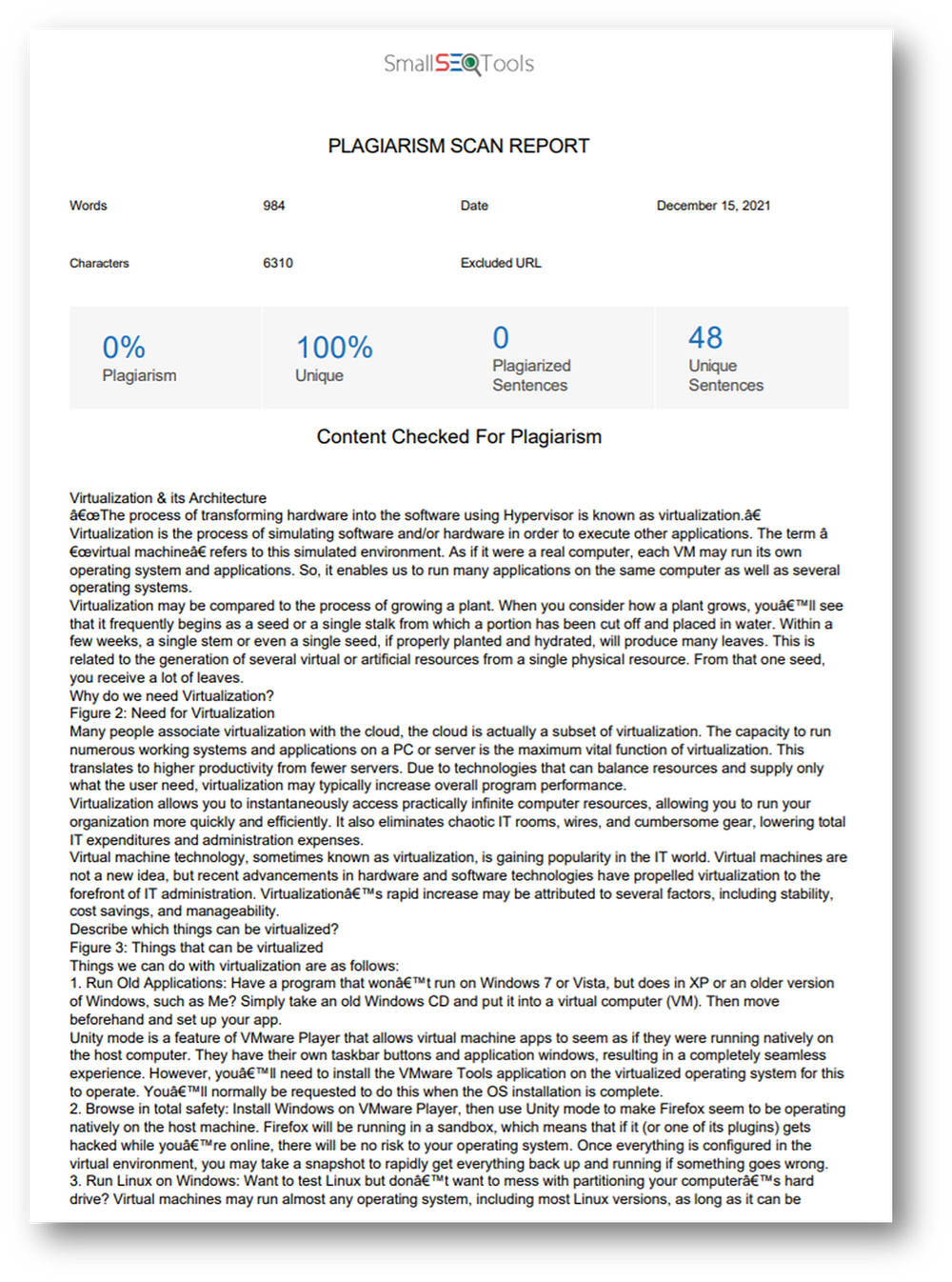 |
| Figure 9: Plagiarism Report of the Blog |
Comments
Post a Comment